instax Pal 2: taking pictures, keeping files
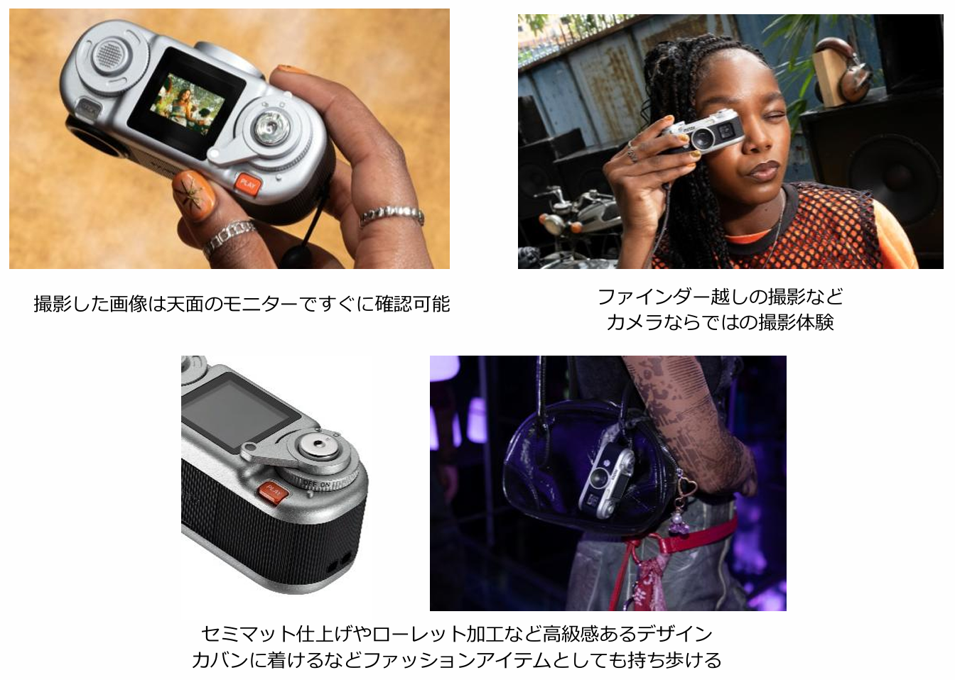
The instax Pal 2™ has a viewfinder, a command dial and a small screen on top for reviewing captured images. Taking a photograph and checking it can now happen on the camera itself.
The look is chosen at capture; pictures to print and files to retain are selected afterward. The camera has no built-in printer, so making a physical photograph also requires a compatible device. What must be decided on the spot with the Pal 2, and what can wait?
This article draws on official Japanese product information, specifications, the FAQ and manufacturer notices checked on October 18, 2026. No hands-on photography, transfer or printing tests were conducted. It is not a review of image quality or handling.
Frame the picture and review it on the camera
Fujifilm's September 15 announcement gives a Japanese release date of October 9, 2026. Changes from the first model include a viewfinder, command dial, lever and top monitor. Framing, taking and reviewing a photograph can be done on the camera.
The dial also switches image effects. The camera does not hold all 30 effects at once: the app lets the user load a selection of up to six. The official FAQ adds that these effects work only at capture. They cannot be applied to a photograph afterward or swapped for another effect.
For two pictures of a cup by a window using different effects, the photographer would have to choose again and take another photograph there. The available looks are narrowed down before shooting; the choice among them happens on the spot. Reviewing the image on the top screen could also inform a decision to change the framing or effect and take another picture. These are possible uses inferred from the specifications. How much detail the screen allows a photographer to judge has not been tested.
These changes do not establish an improvement in image quality. How well the viewfinder helps with framing, or how readable the screen is outdoors, needs testing. Weight has also changed, from about 41g for the first Pal to about 87g in the Pal 2 specifications. More features do not necessarily mean the same experience of carrying it.
The article on KODAK CHARMERA's images considered the appeal of a small second camera through its rendering. The first question here is whether framing, choosing a look and checking a photograph are things the photographer wants to do with a tool separate from a smartphone.
Where does the image go after capture?
In the workflow described in the announcement, pictures move from the Pal 2 to its app over USB Type-C or Bluetooth. They can then be saved on the phone or sent to compatible instax Link, Evo or LiPlay devices for printing. Print size depends on the device and film used.

The FAQ's printing instructions also describe selecting an image in the camera's playback menu and sending it directly to a compatible printer over Bluetooth. In the app route, the Pal app passes the picture to the output device's app. Saving a file on the phone is therefore not a prerequisite for making a print.
One possible division is to choose a picture on the camera to hand to someone immediately, then transfer the pictures not yet sent to the app and compare them at home. The first route requires carrying a printer and film, but selection itself need not move to a phone. Handing over a print and successfully keeping a file for later use also need to be checked separately.
Capturing 10MP and keeping 10MP
There is an early post-release limitation to understand. The official specifications list JPEG recording, with 3776×2832 pixels in 10MP mode. The image reaching the app depends on the transfer method: USB Type-C preserves the captured pixel dimensions, while Bluetooth reduces the image to 1280×960 pixels, approximately 1MP.
The manufacturer's notice on saved image size also describes a problem: even after a 10MP image reaches the app over USB, saving it to the phone with the no-frame option produces a 1MP image. The camera's file, the image transferred to the app and the file saved on the phone need not have the same dimensions.
For a photograph captured at 10MP, the notice available on October 18, 2026 describes these results:
| Transfer route | Recorded on the camera | Transferred to the app | Saved to the phone without a frame |
|---|---|---|---|
| USB Type-C | About 10MP | About 10MP | A reported problem reduces it to about 1MP |
| Bluetooth | About 10MP | About 1MP | About 1MP |
Fujifilm schedules a fix for late October. Its description of the change says unedited images will retain the transferred dimensions when saved; for edited images, users will choose the original or edited version. Saving the edited version without a frame will still produce 1MP. As of October 18, the fix is still planned.
Keeping a larger image therefore requires more than checking the camera setting. Check the transfer method and the final file's pixel width and height. Seeing the same photograph on a screen does not establish how much image information the saved file contains.
To retain the camera's recording, check the FAQ's setting for keeping images after transfer. It allows photographs to remain in the camera or on its microSD card, but the FAQ says transferred photographs cannot be sent to the app again. Do not plan on first sending a picture over Bluetooth and later sending the same photograph again over USB at a larger size. Deciding which file to retain belongs before the first transfer, too.
Room to reframe later
Suppose a photograph includes a whole table by a window, but later only the cup and its shadow in the centre seem worth keeping. The look was chosen at capture; the part of the frame to retain can still be reconsidered from the saved file.
Assume the crop keeps half the original width and half the height, without adding pixels through interpolation. The remaining pixel count is 1/2 × 1/2 = 1/4 of the original.
| File before cropping | After halving width and height | Pixels remaining |
|---|---|---|
| 3776×2832 pixels | 1888×1416 pixels | About 2.67MP |
| 1280×960 pixels | 640×480 pixels | About 0.31MP |
This is a calculation from those dimensions, not a measurement made with the Pal 2 or its app. It says nothing about differences caused by focus, camera shake, the lens or image processing. It shows how many pixels remain after narrowing the frame by the same proportion.
Showing the whole composition as a small image and retaining room for a substantial later crop call for different files. That difference will remain even if the planned late-October fix arrives. It is a reason to distinguish the edited picture shared today from the file kept for a possible change of composition later.
Follow the photograph through to the print
The article on instax film capacity and prices mentioned the Pal 2 while considering how capture and printing can happen at different times. With the Pal 2, effects are prepared before shooting, while a picture to print can be chosen on the spot. Not everything is decided after capture.
When an iPhone can be a primary camera considered how much control to take over automatic processing. Preparing effects and choosing one on location with the Pal 2 is also a separate task from keeping a large file for later cropping. Preparing a look does not settle which pixel dimensions to save, or where to save them.
If the aim is to hand someone a picture that day, bring a printer and film to print after taking and checking the photograph. To choose pictures again later, decide how to transfer them and where to save them. When you choose the picture to give away and the data to keep affects what you carry and prepare.